Create funny video cartoon or greeting e-card with friend's face, audio and background


Custom Search
OurQFace TM
About OurQFace
Download Now!
Help
Frequently Asked Questions
Shared Videos
More Resources
Get more Video Template
Get more background
Get more face image
Video Template Editor
About Video Template Editor
Help
Frequently Asked Questions
Opportunities!
Invest in or partner with us!
Place advertisement!
Share your video!
Share or sell your Video Template
Work for us!
Contact us!


OurQFace TM Help

  1. Start OurQFace
  2. How to use OurQFace to create video with sound?
  3. Background Selection
  4. Face Selection
  5. Audio Selection
  6. Video Template Selection
  7. Options Window
  8. Output Selection
  9. Menu
  10. Exit
  11. Feedback to us
1. Start OurQFace
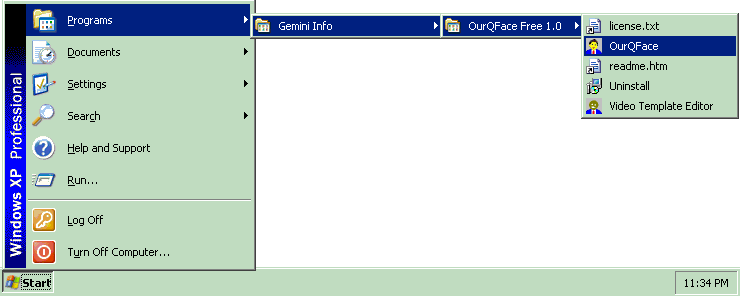
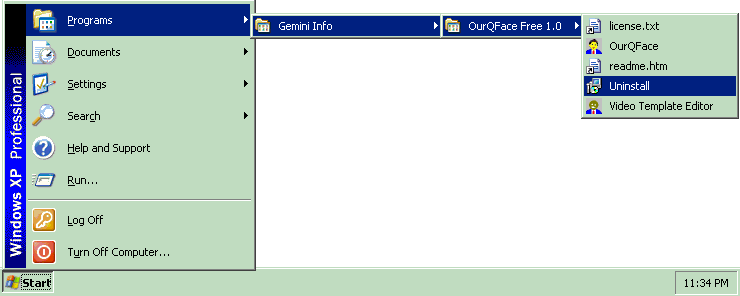
After installing OurQFace Free 1.0, to run OurQFace, click:
Start -> Programs -> Gemini Info -> OurQFace Free 1.0 -> OurQFace

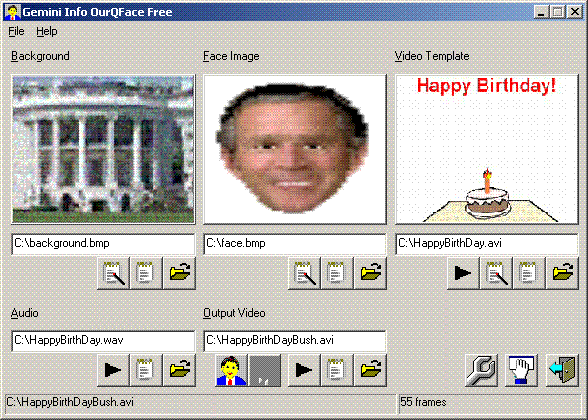
The OurQFace window with 6 regions briefly described as folows will appear:

  Region Location Description
1. Background Top-left corner Select a background image for your video here
2. Face Top-middle Select a face image for your video here
3. Video Template Top-right corner Select a video template for your video here
4. Audio Bottom-left Select an audio, music or sound to be played with your video here
5. Output Bottom-middle Select the output AVI file name of your video here
6. Options Button Bottom-right Click the [Options] button to open the Options Window


2. How to use OurQFace to create video with sound?
To use OurQFace to create video with sound, the steps are as follows:

  1. Select a video template at the top-right corner of the OurQFace window.
  2. Select a background image at the top-left corner of the OurQFace window.
  3. Select a face image at the top-middle of the OurQFace window.
  4. Select an audio, music or sound at the bottom-left corner of the OurQFace window.
  5. Click the [Options] button to open the Options Window to set the options
  6. Select an output AVI file at the bottom-middle of the OurQFace window.
  7. Click the [Start Creating Video] button to start creating your video with sound
  8. Once the creation is completed, click the [Play] button at bottom-middle of the OurQFace window to play and test your created video.

        If the created video is not satisfactory, you can always repeat the above steps with the neccessary changes.

3. Background Selection
You can select a background image by keying in the file name or click the button at the top-left corner of the OurQFace window. You may then click the neighbouring button to edit the background image.

4. Face Selection
You can select a face image by keying in the file name or click the button at the top-middle of the OurQFace window. This face image should consist of a face with empty background. If not, you may then click the neighbouring button to edit the face image to empty its background. The empty background must be in the same colour.

5. Audio Selection
You can select an audio, music or sound file by keying in the file name or click the button at the bottom-left corner of the OurQFace window. You may then click the neighbouring [Play] button to play and test the audio, music or sound.

6. Video Template Selection
You can select a video template by keying in the file name or click the button at the top-right corner of the OurQFace window. You may then click the neighbouring [Play] button to play and test the video template. If you are still not satisfied with the video template, you may click the neighbouring button to edit the video template using our
Video Template Editor.

Note that the frame rate of your created video is the same as the frame rate of the video template. This frame rate can only be changed when re-creating the video template (say using our Video Template Editor).

7. Options Window
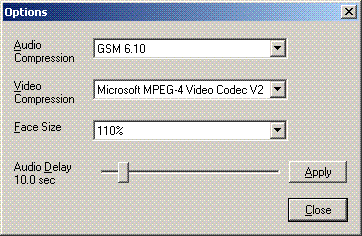
After clicking the [Options] button, the following Options Window will appear:


The available options in the Options Windows are explained as follows:
  Option Description
1. Audio Compression Select an audio compression for your video here. Select "MP3" if you have it. If not, the next recommended selection is "GSM 6.10".
2. Video Compression Select an video compression for your video here. The recommended selection is "Microsoft MPEG-4 Video Codec V2" or other "MPEG-4" compression.
3. Face Size Select how much your face image will be bigger than the face pattern within the video template. The recommended selection is "110%" so that your face image can superimposed over the face pattern and cover the face pattern well.
4. Audio Delay Select how long your audio, music or sound will delay playing when your created video starts playing. Usually it is 0.0 sec or 5.0 sec. A better way is to use a sound editor to add in the few seconds of silence to your audio, music or sound.

8. Output Selection
You can select an output AVI video file by keying in the file name or click the button at the bottom-middle of the OurQFace window.

9. Menu
The menu is at the top-left corner of the OurQFace window as follows:

The menu items are explained as follows:
File -> Open Project Load all your previous entries from a project file back into OurQFace
File -> Save Project
File -> Save Project As ...
Save all your current entries in OurQFace into a project file
File -> Exit OurQFace Exit OurQFace
Help -> Using OurQFace Obtain help on OurQFace
Help -> About OurQFace Show version and other information of OurQFace

10. Exit
To exit OurQFace, click the [Exit] button.

11. Feedback to us
Please
contact us with the following details to provide feedback on OurQFace:

  1. Your name
  2. Your job title
  3. Your company or organisation name
  4. Your contact email
  5. Please indicate your intention as: "OurQFace - Feedback"
  6. Your feedback